> ## Documentation Index
> Fetch the complete documentation index at: https://pulze.ai/docs/llms.txt
> Use this file to discover all available pages before exploring further.
# Spaces Overview
> Understanding Pulze Spaces - Your AI workspaces for collaboration
## What are Spaces?
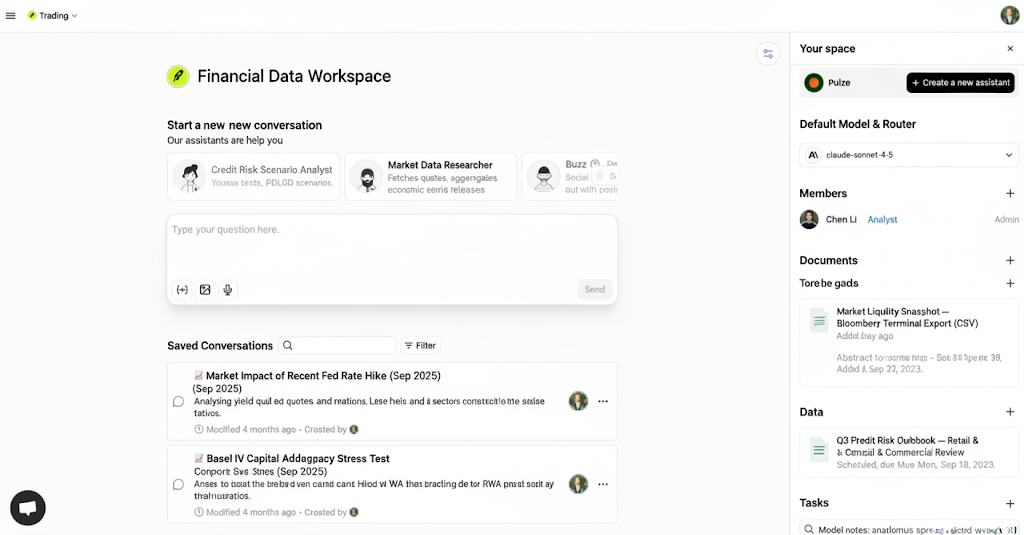
Spaces are collaborative AI workspaces where teams can organize conversations, configure AI models, manage data, and work together on AI-powered projects. Each space is a self-contained environment with its own settings, members, and resources.
 ## Key Features
Start and manage AI conversations with your team
Configure default AI models and routing strategies
Invite team members and manage permissions
Connect external tools and services
## Space Components
### Space Home
Your space home provides a centralized dashboard with:
* Quick access to start new conversations
* List of saved conversations with search and filters
* Default assistant configuration
* Default model and router settings
* Team member overview
* Recent documents and data
* Scheduled tasks
* Learned logs for performance tracking
* Integration status
### Space Settings
Each space can be customized with:
* **Name and Logo**: Brand your workspace
* **Default Assistant**: Set a default AI assistant for new conversations
* **Default Model**: Choose the primary AI model for conversations
* **Default Router**: Configure intelligent model routing
* **Visibility**: Control who can discover and access the space
* **Description**: Document the space's purpose
## Creating a Space
Click on the **Spaces** menu in the navigation bar
Click the **+ New Space** button
* Enter a name for your space
* Add a description (optional)
* Upload a logo (optional)
* Set visibility preferences
Add team members and assign appropriate permissions
Set your default assistant, model, and router preferences
## Space Templates
Pulze offers pre-configured space templates to help you get started quickly:
Browse curated templates for common use cases:
* **Customer Support**: Optimized for handling customer inquiries
* **Content Creation**: Configured for writing and editing tasks
* **Data Analysis**: Set up for analytical workflows
* **Code Development**: Tailored for software development
* **Research**: Designed for information gathering and synthesis
Create your own templates by:
1. Configuring a space with your preferred settings
2. Setting up default assistants and models
3. Adding standard data and documents
4. Saving as a template for future use
## Space Types
### Private Spaces
* Visible only to invited members
* Full control over access and permissions
* Ideal for confidential projects
* Can be shared with specific users
### Organization Spaces
* Visible to all organization members
* Controlled access through permissions
* Great for company-wide resources
* Easier team collaboration
### Public Spaces
* Discoverable by others (if enabled)
* Read-only access for non-members
* Useful for sharing knowledge
* Requires invitation to contribute
## Best Practices
* Create separate spaces for different projects or teams
* Use descriptive names and clear descriptions
* Set appropriate logos to visually identify spaces
* Regularly archive or delete unused spaces
* Set default assistants that match your use case
* Configure appropriate default models for your needs
* Use routers for cost optimization and reliability
* Test configurations before inviting team members
* Invite only necessary team members
* Assign appropriate permission levels
* Use conversations to keep discussions organized
* Leverage comments for asynchronous collaboration
* Upload relevant documents and data early
* Keep data organized and well-labeled
* Regularly review and update datasets
* Remove outdated or unnecessary data
## Space Permissions
Spaces support role-based access control:
| Permission Level | Capabilities |
| ---------------- | --------------------------------------------------------- |
| **Admin** | Full control: manage settings, members, and all resources |
| **Editor** | Create and edit conversations, data, and documents |
| **Viewer** | Read-only access to space content |
[Learn more about permissions →](/pulze/permissions/overview)
## Working with Multiple Spaces
### Switching Between Spaces
* Use the space selector in the navigation bar
* Recently accessed spaces appear at the top
* Search for spaces by name
* Pin frequently used spaces for quick access
### Cross-Space Features
* **Assistants**: Share assistants across multiple spaces
* **Data**: Reference organization-wide data in any space
* **Models**: Use consistent model configurations
* **Templates**: Apply templates to new spaces
## Space Actions
### Common Operations
* **Edit**: Update space settings and configuration
* **Duplicate**: Create a copy of a space with all settings
* **Export**: Download space data and conversations
* **Archive**: Hide inactive spaces from the main list
* **Delete**: Permanently remove a space and its contents
Deleting a space is permanent and cannot be undone. All conversations, data, and settings will be lost.
## Next Steps
Learn how to manage conversations in your space
Set up models and routers for your space
Add and manage team members
Connect external tools and services
## Key Features
Start and manage AI conversations with your team
Configure default AI models and routing strategies
Invite team members and manage permissions
Connect external tools and services
## Space Components
### Space Home
Your space home provides a centralized dashboard with:
* Quick access to start new conversations
* List of saved conversations with search and filters
* Default assistant configuration
* Default model and router settings
* Team member overview
* Recent documents and data
* Scheduled tasks
* Learned logs for performance tracking
* Integration status
### Space Settings
Each space can be customized with:
* **Name and Logo**: Brand your workspace
* **Default Assistant**: Set a default AI assistant for new conversations
* **Default Model**: Choose the primary AI model for conversations
* **Default Router**: Configure intelligent model routing
* **Visibility**: Control who can discover and access the space
* **Description**: Document the space's purpose
## Creating a Space
Click on the **Spaces** menu in the navigation bar
Click the **+ New Space** button
* Enter a name for your space
* Add a description (optional)
* Upload a logo (optional)
* Set visibility preferences
Add team members and assign appropriate permissions
Set your default assistant, model, and router preferences
## Space Templates
Pulze offers pre-configured space templates to help you get started quickly:
Browse curated templates for common use cases:
* **Customer Support**: Optimized for handling customer inquiries
* **Content Creation**: Configured for writing and editing tasks
* **Data Analysis**: Set up for analytical workflows
* **Code Development**: Tailored for software development
* **Research**: Designed for information gathering and synthesis
Create your own templates by:
1. Configuring a space with your preferred settings
2. Setting up default assistants and models
3. Adding standard data and documents
4. Saving as a template for future use
## Space Types
### Private Spaces
* Visible only to invited members
* Full control over access and permissions
* Ideal for confidential projects
* Can be shared with specific users
### Organization Spaces
* Visible to all organization members
* Controlled access through permissions
* Great for company-wide resources
* Easier team collaboration
### Public Spaces
* Discoverable by others (if enabled)
* Read-only access for non-members
* Useful for sharing knowledge
* Requires invitation to contribute
## Best Practices
* Create separate spaces for different projects or teams
* Use descriptive names and clear descriptions
* Set appropriate logos to visually identify spaces
* Regularly archive or delete unused spaces
* Set default assistants that match your use case
* Configure appropriate default models for your needs
* Use routers for cost optimization and reliability
* Test configurations before inviting team members
* Invite only necessary team members
* Assign appropriate permission levels
* Use conversations to keep discussions organized
* Leverage comments for asynchronous collaboration
* Upload relevant documents and data early
* Keep data organized and well-labeled
* Regularly review and update datasets
* Remove outdated or unnecessary data
## Space Permissions
Spaces support role-based access control:
| Permission Level | Capabilities |
| ---------------- | --------------------------------------------------------- |
| **Admin** | Full control: manage settings, members, and all resources |
| **Editor** | Create and edit conversations, data, and documents |
| **Viewer** | Read-only access to space content |
[Learn more about permissions →](/pulze/permissions/overview)
## Working with Multiple Spaces
### Switching Between Spaces
* Use the space selector in the navigation bar
* Recently accessed spaces appear at the top
* Search for spaces by name
* Pin frequently used spaces for quick access
### Cross-Space Features
* **Assistants**: Share assistants across multiple spaces
* **Data**: Reference organization-wide data in any space
* **Models**: Use consistent model configurations
* **Templates**: Apply templates to new spaces
## Space Actions
### Common Operations
* **Edit**: Update space settings and configuration
* **Duplicate**: Create a copy of a space with all settings
* **Export**: Download space data and conversations
* **Archive**: Hide inactive spaces from the main list
* **Delete**: Permanently remove a space and its contents
Deleting a space is permanent and cannot be undone. All conversations, data, and settings will be lost.
## Next Steps
Learn how to manage conversations in your space
Set up models and routers for your space
Add and manage team members
Connect external tools and services