> ## Documentation Index
> Fetch the complete documentation index at: https://pulze.ai/docs/llms.txt
> Use this file to discover all available pages before exploring further.
# Creating & Managing Spaces
> Create and organize your AI workspaces
## Overview
Think of Spaces as your blank canvas for AI collaboration—they're where endless possibilities begin. Whether you're working solo on a personal project or collaborating with your team, Spaces help you organize your AI-powered work in a way that makes sense for you.
Creating a Space is like starting a new project, team workspace, or initiative. Each Space provides an isolated environment where you can customize everything from your AI assistants to your team members, keeping your work organized and focused.
 ## Viewing Your Spaces
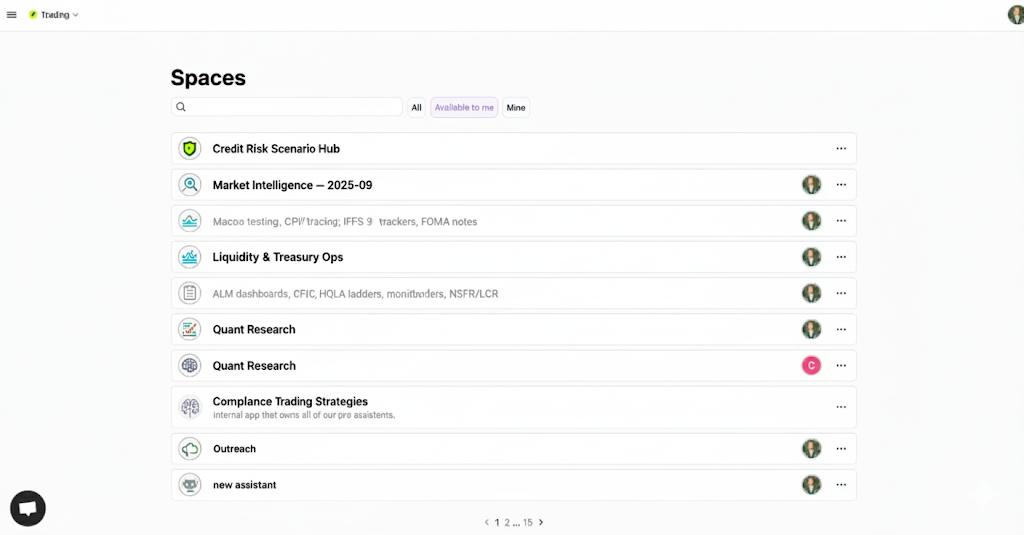
Your Spaces page gives you a clear overview of all your AI workspaces. At the top, you'll find:
* A **search bar** to quickly find any space by name
* **Filter tabs** to view "All" spaces, only those "Available to me", or just "Mine"
* The **+ New Space** button to create a new workspace
Each Space appears as a card displaying its custom logo (or default icon), name, and a quick-access menu (⋮) for editing or deleting the space. You can also see which team members have access to each space through the member avatars displayed on each card.
## Creating a New Space
## Viewing Your Spaces
Your Spaces page gives you a clear overview of all your AI workspaces. At the top, you'll find:
* A **search bar** to quickly find any space by name
* **Filter tabs** to view "All" spaces, only those "Available to me", or just "Mine"
* The **+ New Space** button to create a new workspace
Each Space appears as a card displaying its custom logo (or default icon), name, and a quick-access menu (⋮) for editing or deleting the space. You can also see which team members have access to each space through the member avatars displayed on each card.
## Creating a New Space
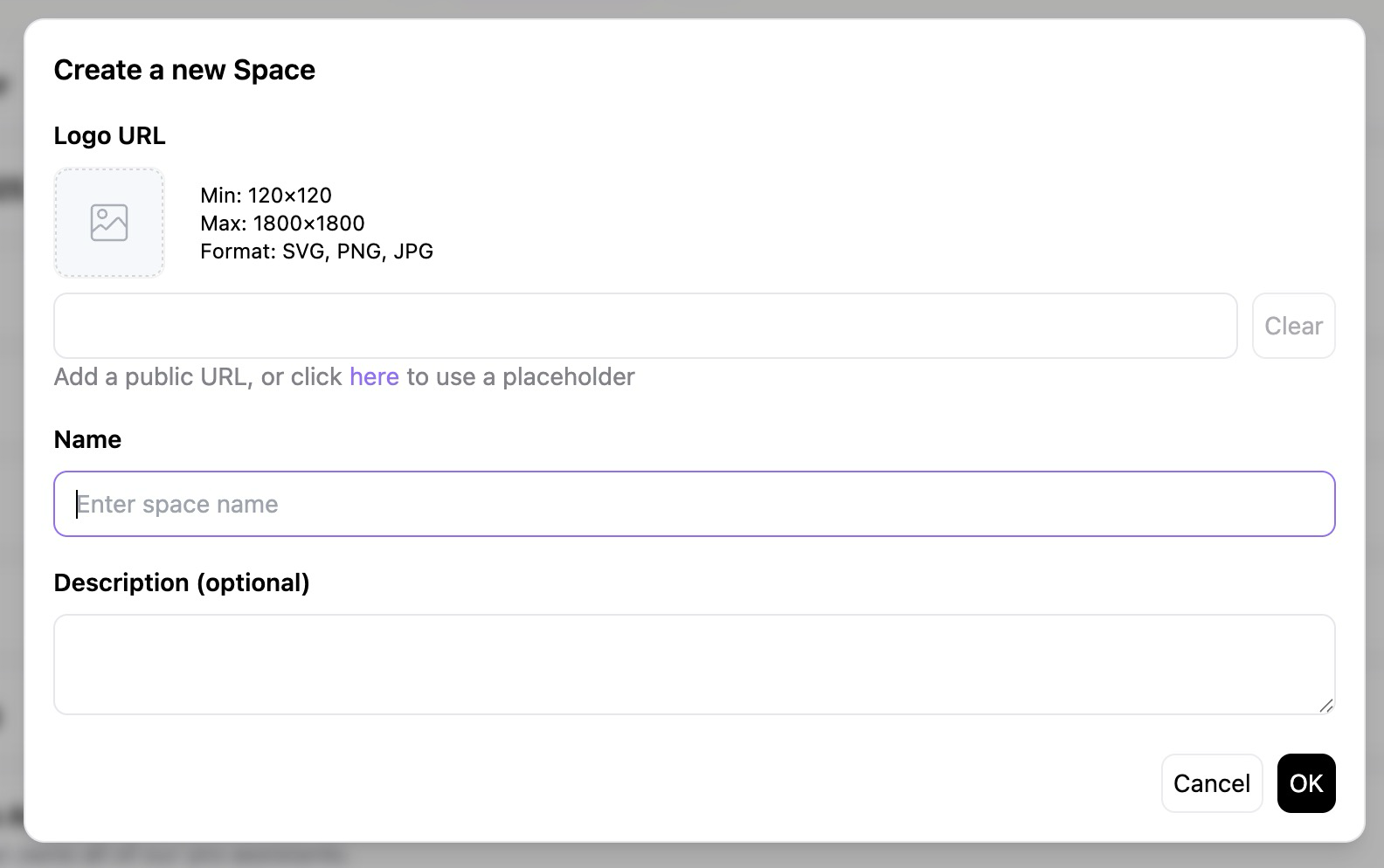 Creating a new Space is simple and quick:
1. **Click the "+ New Space" button** at the top of your Spaces page
2. **Fill in your Space details**:
* **Logo URL** (optional) - Add a custom logo to visually identify your space
* Minimum size: 120×120 pixels
* Maximum size: 1800×1800 pixels
* Supported formats: SVG, PNG, JPG
* **Name** (required) - Give your space a clear, descriptive name
* **Description** (optional) - Add context about the space's purpose
3. **Click "OK"** to create your space
That's it! You'll be taken directly to your new Space where you can start configuring your AI assistants, inviting team members, and beginning your work.
### After Creating Your Space
Your Space starts as a blank canvas. As you add conversations and data, it becomes your personalized AI workspace organized around your topics and projects.
**Next steps:**
* Choose an assistant (or create one)
* Upload data and documents
* Set up tasks
* Invite team members
* Connect integrations
Use your Space for rapid prototyping, building AI teammates, research, or boosting productivity—the opportunities are endless.
## Space Management
### Editing Spaces
To modify a space:
1. Click the menu icon (⋮) next to the space name
2. Select **"Edit"**
3. Update space settings:
* Name
* Logo
* Description
* Visibility settings
4. Save changes
### Deleting Spaces
Deleting a space is permanent and removes all conversations, documents, and settings within that space.
To delete a space:
1. Click the menu icon (⋮) next to the space name
2. Select **"Delete"**
3. Confirm deletion in the dialog
4. The space and all its contents are permanently removed
### Space Actions
From the space list, you can:
* **Open space** - Click the space card to enter
* **Edit** - Modify space settings
* **Delete** - Remove the space
## Space Settings
When inside a space, you can see the **"Your space"** panel on the right with:
* **Default Assistant** - Currently selected assistant
* Shows assistant name and avatar
* **"Create a new assistant"** button
* **Default Model & Router** - Currently selected model
* Dropdown to select different models
* Shows current model name with checkmark
* **Members** - Team members with access
* Click **+** to add members
* Shows member count
* **Documents** - Space-specific documents
* Click **+** to create new documents
* Shows document count or "No results"
* **Data** - Uploaded files and data
* Click **+** to add data
* Options: Upload, Add web page, Connect data source
* Shows data count or "No results"
* **Tasks** - Scheduled automated tasks
* Click **+** to create tasks
* Shows task count or "No tasks scheduled yet"
* **Learned Logs** - Training data from conversations
* Search functionality
* Shows "No learned logs yet" when empty
* **Integrations** - Connected external services
* AI Chatbot
* Chrome Extension
* Make.com Integration
* Zapier Integration
* **"Request a new integration"** link
## Search and Filtering
### Search Functionality
Find spaces by:
* Space name
* Real-time results as you type
* Clear search with X button
### Filter Tabs
**All** - Complete list of spaces
* Shows every space in the organization
* Useful for admins and space discovery
**Available to me** - Accessible spaces
* Spaces you're a member of
* Spaces you have permissions to view
**Mine** - Your spaces
* Spaces you created
* Spaces where you're the owner
## Best Practices
**Organized Structure**: Create separate spaces for different teams, projects, or use cases.
**Clear Naming**: Use descriptive names that indicate the space's purpose and audience.
**Set Defaults Early**: Configure default assistants and models when creating spaces to ensure consistency.
**Invite Promptly**: Add team members right away so they can start collaborating immediately.
**Regular Cleanup**: Archive or delete unused spaces to keep your workspace organized.
## Permission Levels
Each space has permission levels:
* **Owner** - Full control over space
* **Admin** - Manage settings and members
* **Editor** - Create and edit content
* **Viewer** - Read-only access
[Learn more about permissions →](/pulze/spaces/members)
## Common Use Cases
### Team Collaboration
* Create team-specific spaces
* Share assistants and data
* Centralize conversations
### Project Management
* Organize by project or initiative
* Track progress through conversations
* Store project-related documents
### Client Work
* Separate space per client
* Client-specific assistants and data
* Controlled access for stakeholders
### Testing & Development
* Sandbox spaces for experiments
* Test new assistants and models
* Safe environment for trials
## Troubleshooting
### Can't Create Space
If you can't create a space:
1. Check organization subscription limits
2. Verify you have creation permissions
3. Ensure name doesn't conflict with existing space
### Space Not Appearing
If a space doesn't show:
1. Check which filter tab is selected
2. Verify you have access permissions
3. Try searching for the space name
4. Confirm space hasn't been deleted
### Lost Access
If you lost access to a space:
1. Contact the space owner or admin
2. Check if your organization membership changed
Learn about Spaces
Manage Space Members
Configure Default Assistant
Set Default Models
Creating a new Space is simple and quick:
1. **Click the "+ New Space" button** at the top of your Spaces page
2. **Fill in your Space details**:
* **Logo URL** (optional) - Add a custom logo to visually identify your space
* Minimum size: 120×120 pixels
* Maximum size: 1800×1800 pixels
* Supported formats: SVG, PNG, JPG
* **Name** (required) - Give your space a clear, descriptive name
* **Description** (optional) - Add context about the space's purpose
3. **Click "OK"** to create your space
That's it! You'll be taken directly to your new Space where you can start configuring your AI assistants, inviting team members, and beginning your work.
### After Creating Your Space
Your Space starts as a blank canvas. As you add conversations and data, it becomes your personalized AI workspace organized around your topics and projects.
**Next steps:**
* Choose an assistant (or create one)
* Upload data and documents
* Set up tasks
* Invite team members
* Connect integrations
Use your Space for rapid prototyping, building AI teammates, research, or boosting productivity—the opportunities are endless.
## Space Management
### Editing Spaces
To modify a space:
1. Click the menu icon (⋮) next to the space name
2. Select **"Edit"**
3. Update space settings:
* Name
* Logo
* Description
* Visibility settings
4. Save changes
### Deleting Spaces
Deleting a space is permanent and removes all conversations, documents, and settings within that space.
To delete a space:
1. Click the menu icon (⋮) next to the space name
2. Select **"Delete"**
3. Confirm deletion in the dialog
4. The space and all its contents are permanently removed
### Space Actions
From the space list, you can:
* **Open space** - Click the space card to enter
* **Edit** - Modify space settings
* **Delete** - Remove the space
## Space Settings
When inside a space, you can see the **"Your space"** panel on the right with:
* **Default Assistant** - Currently selected assistant
* Shows assistant name and avatar
* **"Create a new assistant"** button
* **Default Model & Router** - Currently selected model
* Dropdown to select different models
* Shows current model name with checkmark
* **Members** - Team members with access
* Click **+** to add members
* Shows member count
* **Documents** - Space-specific documents
* Click **+** to create new documents
* Shows document count or "No results"
* **Data** - Uploaded files and data
* Click **+** to add data
* Options: Upload, Add web page, Connect data source
* Shows data count or "No results"
* **Tasks** - Scheduled automated tasks
* Click **+** to create tasks
* Shows task count or "No tasks scheduled yet"
* **Learned Logs** - Training data from conversations
* Search functionality
* Shows "No learned logs yet" when empty
* **Integrations** - Connected external services
* AI Chatbot
* Chrome Extension
* Make.com Integration
* Zapier Integration
* **"Request a new integration"** link
## Search and Filtering
### Search Functionality
Find spaces by:
* Space name
* Real-time results as you type
* Clear search with X button
### Filter Tabs
**All** - Complete list of spaces
* Shows every space in the organization
* Useful for admins and space discovery
**Available to me** - Accessible spaces
* Spaces you're a member of
* Spaces you have permissions to view
**Mine** - Your spaces
* Spaces you created
* Spaces where you're the owner
## Best Practices
**Organized Structure**: Create separate spaces for different teams, projects, or use cases.
**Clear Naming**: Use descriptive names that indicate the space's purpose and audience.
**Set Defaults Early**: Configure default assistants and models when creating spaces to ensure consistency.
**Invite Promptly**: Add team members right away so they can start collaborating immediately.
**Regular Cleanup**: Archive or delete unused spaces to keep your workspace organized.
## Permission Levels
Each space has permission levels:
* **Owner** - Full control over space
* **Admin** - Manage settings and members
* **Editor** - Create and edit content
* **Viewer** - Read-only access
[Learn more about permissions →](/pulze/spaces/members)
## Common Use Cases
### Team Collaboration
* Create team-specific spaces
* Share assistants and data
* Centralize conversations
### Project Management
* Organize by project or initiative
* Track progress through conversations
* Store project-related documents
### Client Work
* Separate space per client
* Client-specific assistants and data
* Controlled access for stakeholders
### Testing & Development
* Sandbox spaces for experiments
* Test new assistants and models
* Safe environment for trials
## Troubleshooting
### Can't Create Space
If you can't create a space:
1. Check organization subscription limits
2. Verify you have creation permissions
3. Ensure name doesn't conflict with existing space
### Space Not Appearing
If a space doesn't show:
1. Check which filter tab is selected
2. Verify you have access permissions
3. Try searching for the space name
4. Confirm space hasn't been deleted
### Lost Access
If you lost access to a space:
1. Contact the space owner or admin
2. Check if your organization membership changed
Learn about Spaces
Manage Space Members
Configure Default Assistant
Set Default Models