> ## Documentation Index
> Fetch the complete documentation index at: https://pulze.ai/docs/llms.txt
> Use this file to discover all available pages before exploring further.

# Playground

[You can use the playground here](https://pulze.ai/playground)

## What is it?

The playground is a tool built to showcase the capabilities of Pulze, especially its routing and model selection features.

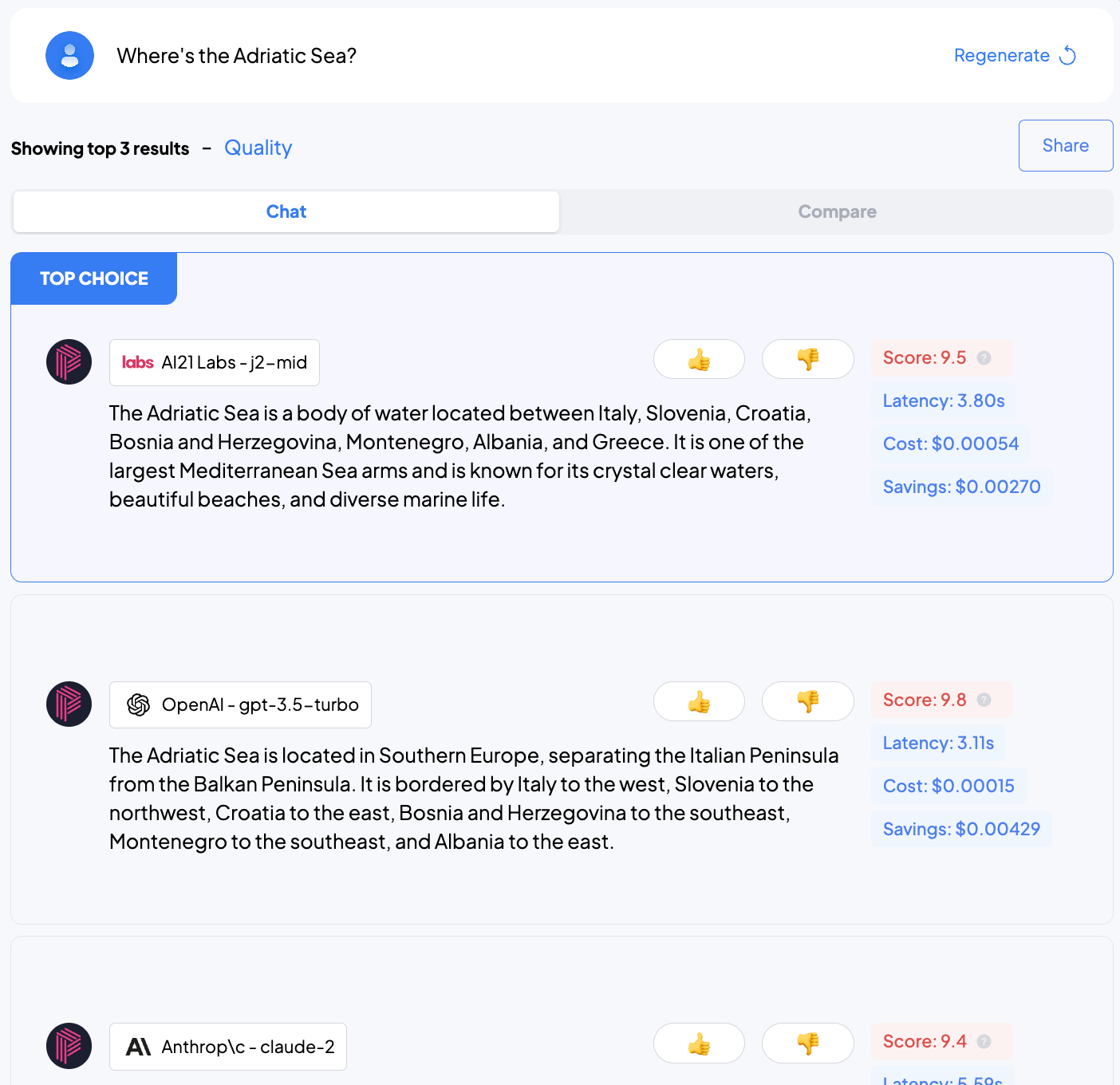
When accessing the playground and performing a request, three parallel calls will be done to the top 3 models chosen by
our Decision Engine. You can use it to compare how different queries lead to different results.

## How to use it?

<Steps>
  <Step title="Prompt">
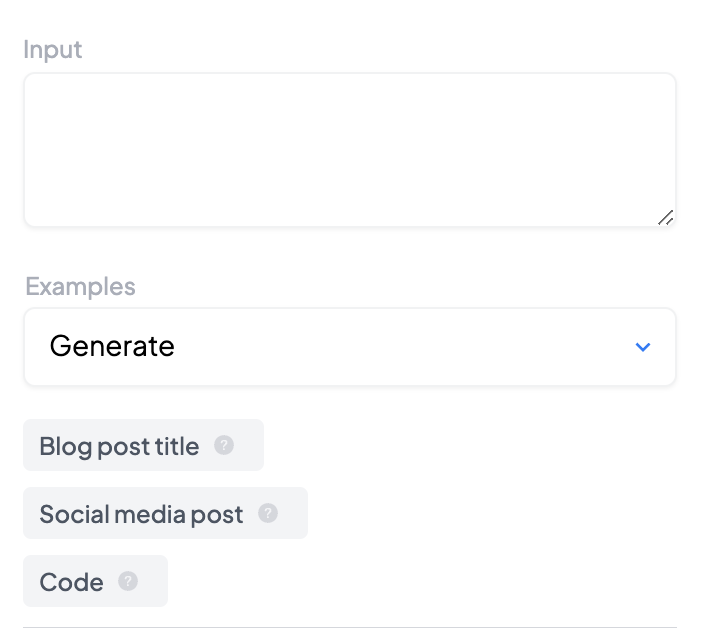
    To start, go to the sidebar and enter a prompt. This prompt, alongside with the configuration,
    will be used to find the best models for your request

    <div style={{maxWidth: 400, margin: "0 auto"}}>
      <Frame caption="Prompt and input">
        <img src="https://mintcdn.com/pulzeai/iIc-koTvEb657C0a/_images/playground-sidebar-prompt.png?fit=max&auto=format&n=iIc-koTvEb657C0a&q=85&s=0966b4e951a8e2e97e44d50562deb705" width="702" height="628" data-path="_images/playground-sidebar-prompt.png" />
      </Frame>
    </div>

    <br />

    <Info>If you want to enter new lines in the prompt, use <kbd>Shift + Return</kbd></Info>
  </Step>

  <Step title="Settings">
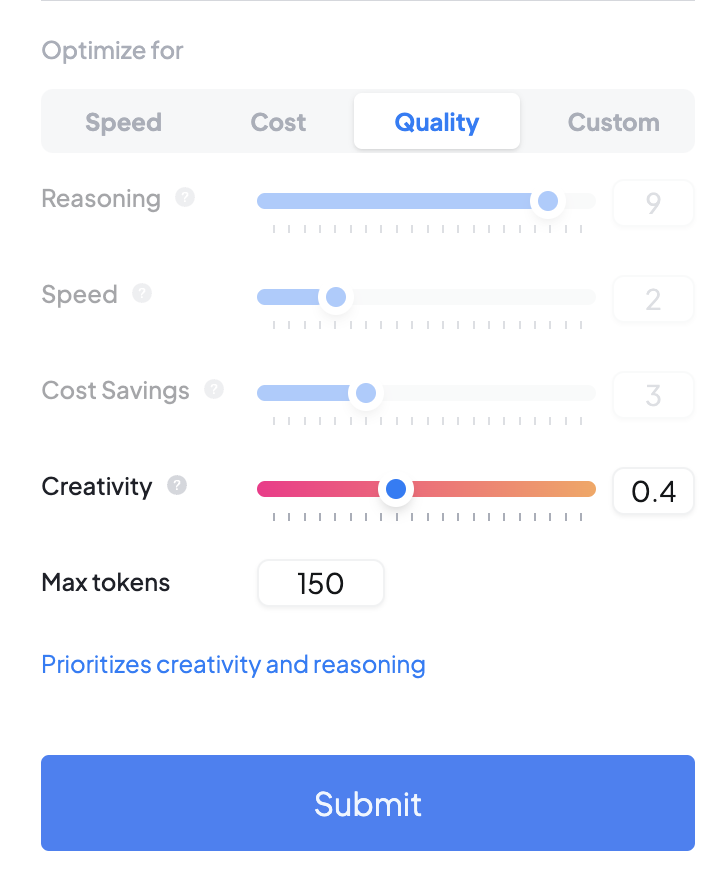
    Once you have settled on a prompt you'd like to use, head to the bottom part of the configuration sidebar
    and select your preferred optimizations. You might want to test with very fast models, or cheap ones, or
    have a preference for models with a high quality.

    Select the maximum number of tokens (i.e. the limit on the length of the response) and the creativity too.
    These settings will also have an impact on the final selected model, as our internal scoring knows not only
    which models are the fastest or cheapest, but also which ones perform better for which categories, and which
    ones perform better results when creativity is high or low.

    <div style={{maxWidth: 400, margin: "0 auto"}}>
      <Frame caption="Configuration and weights">
        <img src="https://mintcdn.com/pulzeai/iIc-koTvEb657C0a/_images/playground-sidebar-settings.png?fit=max&auto=format&n=iIc-koTvEb657C0a&q=85&s=2da996e6ceb41262c3d2a0821d9792a1" width="728" height="882" data-path="_images/playground-sidebar-settings.png" />
      </Frame>
    </div>
  </Step>

  <Step title="Results">
    Once you've settled on the prompt you'd like to test, and adjusted the configurations to your needs,
    click the submit button (or press <kbd>Return</kbd>) to <b>start the actual request</b>.

    This will perform two requests:

    1. Find the best models for your Prompt + Settings combination
    2. Perform an API request to each of those models

    <br />

    <Note>
      Remember that this is only a showcase of Pulze's capabilities. When performing actual API requests,
      only one API call will be made. If you specify a particular model, that model will be used. Otherwise,
      a similar model-selection process will happen in the background which will route your request to the
      best-rated model.
    </Note>

    <div style={{maxWidth: 400, margin: "0 auto"}}>
      <Frame caption="Results">
        <img src="https://mintcdn.com/pulzeai/iIc-koTvEb657C0a/_images/playground-results.png?fit=max&auto=format&n=iIc-koTvEb657C0a&q=85&s=f8613b69ada328acdb19353ddd66af31" width="1404" height="1360" data-path="_images/playground-results.png" />
      </Frame>
    </div>
  </Step>

  <Step title="Compare results">
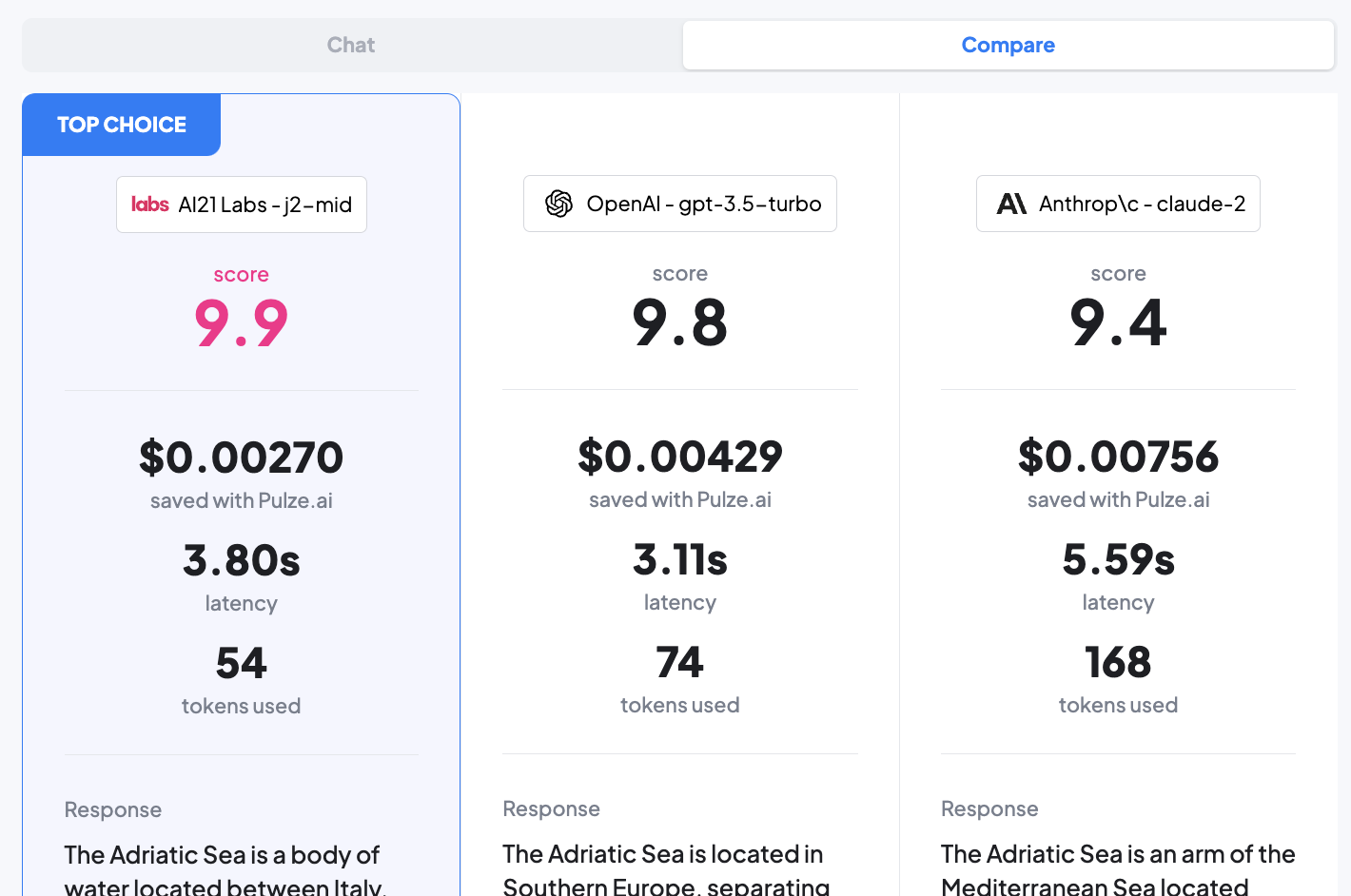
    You can switch from the above view to one that's comparing the models and show their results
    as they compare with each other

    <div style={{maxWidth: 400, margin: "0 auto"}}>
      <Frame caption="Results">
        <img src="https://mintcdn.com/pulzeai/iIc-koTvEb657C0a/_images/playground-results-compare.png?fit=max&auto=format&n=iIc-koTvEb657C0a&q=85&s=b35d988aa5179246f0e5b8d92cbdf9fb" width="1420" height="942" data-path="_images/playground-results-compare.png" />
      </Frame>
    </div>
  </Step>
</Steps>

## Share

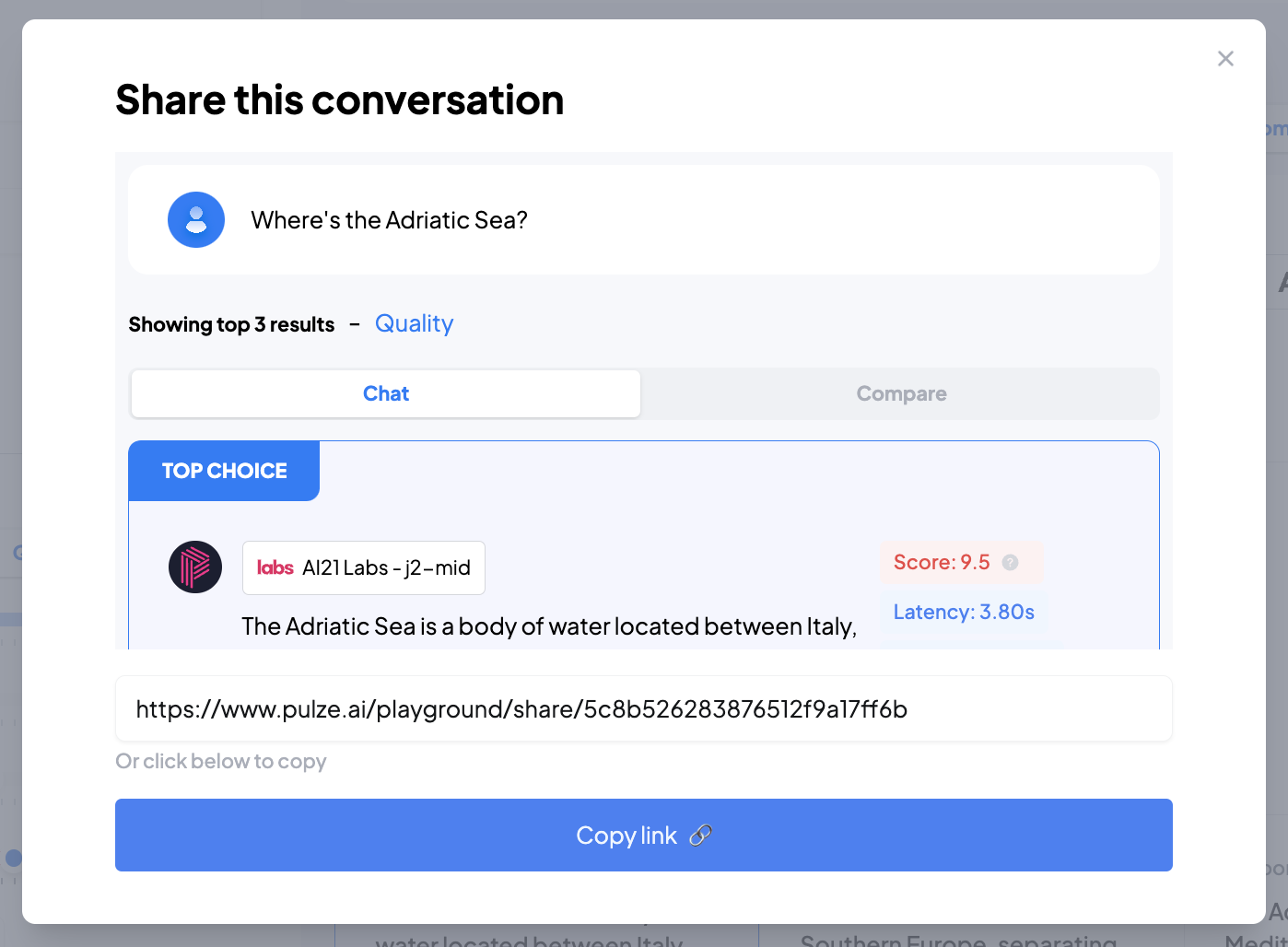
If you'd like to share a given conversation with your colleagues or friends, click the Share button
to open the modal.
<div style={{maxWidth: 400, margin: "0 auto"}}>
  <Frame caption="Click on the share button">
    <img src="https://mintcdn.com/pulzeai/iIc-koTvEb657C0a/_images/playground-share.png?fit=max&auto=format&n=iIc-koTvEb657C0a&q=85&s=a5ddf633473544fc587ffc63393d4dd9" width="232" height="164" data-path="_images/playground-share.png" />
  </Frame>
</div>

<br />

<div style={{maxWidth: 400, margin: "0 auto"}}>
  <Frame caption="Share the conversation">
    <img src="https://mintcdn.com/pulzeai/iIc-koTvEb657C0a/_images/playground-share-modal.png?fit=max&auto=format&n=iIc-koTvEb657C0a&q=85&s=21ffbbd9a5672c905d9c7c319e7f7cb9" width="1398" height="1028" data-path="_images/playground-share-modal.png" />
  </Frame>
</div>

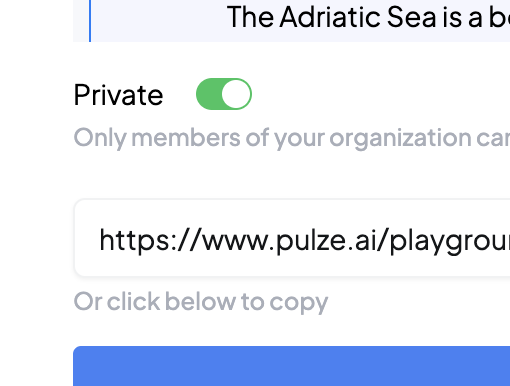
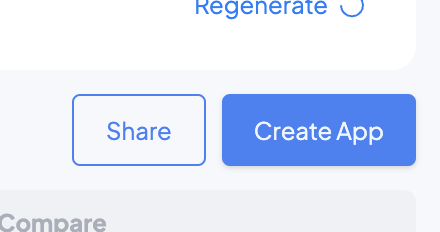
If you're accessing the playground located inside of the Platform ([https://platform.pulze.ai/playground](https://platform.pulze.ai/playground))
you'll also be able to share privately within the organization, or directly create an App based on the
configuration used for that particular request.
<div style={{maxWidth: 400, margin: "0 auto"}}>
  <Frame caption="Share the conversation privately">
    <img src="https://mintcdn.com/pulzeai/iIc-koTvEb657C0a/_images/playground-share-private.png?fit=max&auto=format&n=iIc-koTvEb657C0a&q=85&s=a6ff4638f105872264aacb08644047a0" width="510" height="386" data-path="_images/playground-share-private.png" />
  </Frame>
</div>

<br />

<div style={{maxWidth: 400, margin: "0 auto"}}>
  <Frame caption="Create an app based on the results">
    <img src="https://mintcdn.com/pulzeai/iIc-koTvEb657C0a/_images/playground-create-app.png?fit=max&auto=format&n=iIc-koTvEb657C0a&q=85&s=9decb996f4d2cde7bed95536d27ccd5a" width="440" height="232" data-path="_images/playground-create-app.png" />
  </Frame>
</div>